
You've got the perfect photo, but the website says "image must be 1080×1080", the form rejects it for being too large, or your YouTube thumbnail comes out with ugly black bars. Resizing should be a ten-second job — yet most people end up with a stretched face, a blurry result, or a watermark from some app they had to install.
This guide explains what resizing really does, how to do it without losing quality, and the exact sizes for the places you're most likely to post. Everything here can be done free in your browser with the Pixnova Image Resizer, and your photos never leave your device.
What does "resizing" actually mean?
Every digital photo is a grid of tiny coloured squares called pixels. A photo that's 4000×3000 has 4,000 pixels across and 3,000 down. Resizing changes that grid — making it smaller (fewer pixels) or larger (more pixels).
That's different from compressing. Compressing keeps the same width and height but stores the colours more efficiently so the file gets lighter. Cropping is different again: it cuts away the edges. Knowing which one you need saves a lot of frustration.
- Resize — change width × height (e.g. 4000×3000 → 1080×810).
- Compress — keep the size, shrink the file (e.g. 4 MB → 400 KB).
- Crop — cut the frame to a new shape (e.g. landscape → square).
How to resize an image in 4 steps
Here's the quickest free way, which works the same on iPhone, Android, Windows and Mac:
- Open the Pixnova Image Resizer and drop in one photo or a whole batch.
- Type a width and height in pixels, choose a percentage like 50%, or tap a preset such as "Instagram post".
- Pick JPG, PNG or WebP and click Resize.
- Download each image, or grab all of them in one ZIP file.
How to avoid stretched or squashed photos
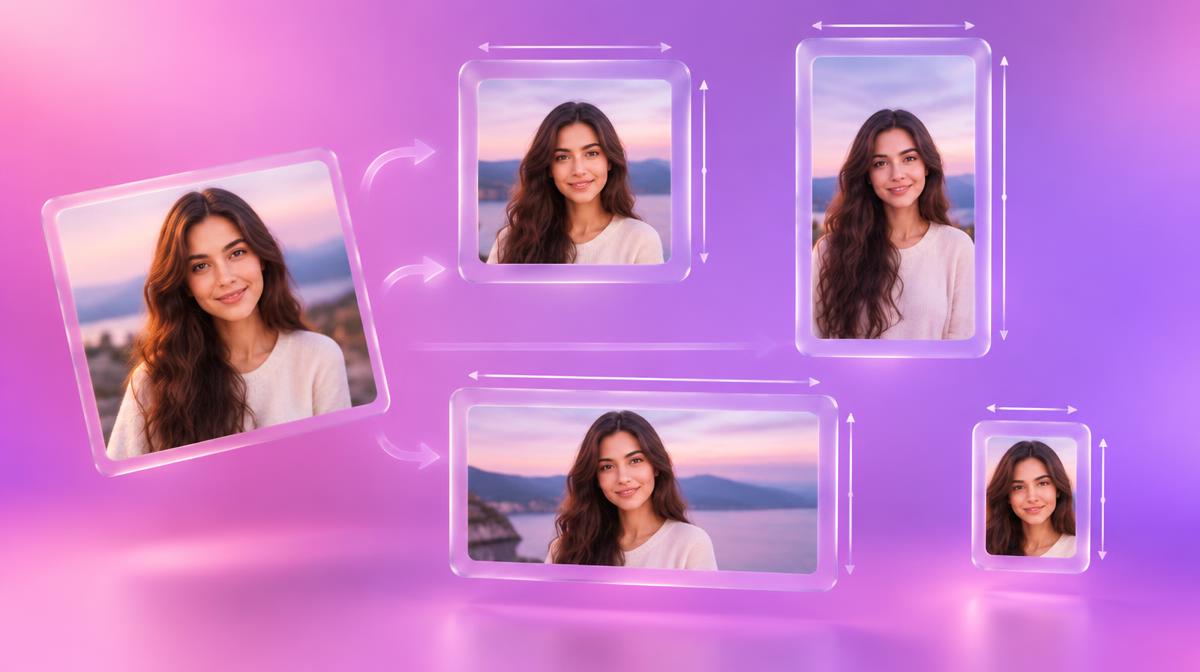
The number-one resizing mistake is changing the width and height independently. If your photo is 3:2 and you force it into a square, faces get wider and circles turn into ovals.
The fix is the aspect-ratio lock. When it's on, you type the width and the height follows automatically. When you genuinely need an exact shape — say, a square profile picture — choose "Exact size (crop to fill)". Pixnova then fills the frame and trims the edges from the centre, so nothing is distorted.
Does resizing reduce quality?
Making a photo smaller is almost always safe. You're throwing away pixels the screen couldn't show anyway, and good smoothing keeps edges crisp. A 12-megapixel phone photo shrunk to 1080 px wide looks just as sharp on Instagram.
Making a photo bigger is where quality suffers. Doubling a small image means inventing pixels that were never captured, so it looks soft. As a rule, avoid enlarging beyond about 150% — and always keep your original.
Image size cheat sheet
These are commonly recommended sizes. Platforms update their guidance occasionally, so if an upload looks wrong, check the platform's own help page.
- Instagram post: 1080×1080 (square) or 1080×1350 (portrait).
- Instagram Story / Reel, TikTok, YouTube Shorts: 1080×1920.
- YouTube thumbnail: 1280×720.
- YouTube channel banner: 2560×1440.
- Facebook cover: 851×315.
- X (Twitter) header: 1500×500.
- LinkedIn banner: 1584×396.
- Profile picture (most sites): 400×400 or larger, square.
Which format should you save as?
JPG is the safe default for photos — small files that open everywhere. PNG is best for screenshots, logos and anything with sharp text or transparency. WebP gives the smallest files for websites and is supported by all modern browsers. If you're unsure, read our comparison of WebP vs JPG vs PNG.
Need a smaller file too? Resize, then compress
If a form says "maximum 200 KB", resizing alone may not be enough. Resize to the dimensions you need first, then run the result through the Image Compressor and lower the quality until it fits. Doing it in this order gives a sharper result than compressing a huge photo hard.
Why resize in your browser instead of an upload site?
Most free resizer websites upload your photo to their servers, process it there, and send it back. That's slower, and it means your personal photos — passports, ID scans, family pictures — sit on someone else's computer for a while.
Pixnova resizes on your own device using your browser. There's no upload wait, no account, no watermark, and the Privacy Receipt shows that zero bytes were sent. It also works for batches, so you can resize a whole holiday album in one go.
Quick answers
Can I resize on my phone? Yes — it works in Safari and Chrome on iPhone and Android, no app needed.
Can I resize many photos at once? Yes. Drop them all in, set one size, and download a ZIP.
Will my photo get a watermark? Never. Pixnova is free with no watermark and no sign-up.
Ready to try it? Use the free JPG to PNG converter — no signup, no watermark, 100% private. New here? Read about Pixnova, browse the FAQ, or contact Saboor.