
You copy photos from your iPhone to your Windows PC, double-click one, and get an error — or a prompt to buy a codec from the Microsoft Store. Sound familiar? You're not doing anything wrong. Your iPhone saves pictures as HEIC, a format Windows still doesn't fully support out of the box.
This guide shows the fastest free way to turn HEIC into JPG on Windows, why the problem exists in the first place, and how to stop it happening again. No software to install, no watermark, and your photos never leave your computer.
What is a HEIC file, and why does my iPhone use it?
HEIC (High Efficiency Image Container) is Apple's default photo format since iOS 11. It stores a picture at roughly half the size of a comparable JPG while keeping the same visual quality, which is why your iPhone storage lasts longer.
The catch is compatibility. Many Windows apps, older photo editors, online forms, printers and government upload portals still expect JPG or PNG. When they meet a .heic file, they either refuse it or show a blank thumbnail.
How the free conversion works
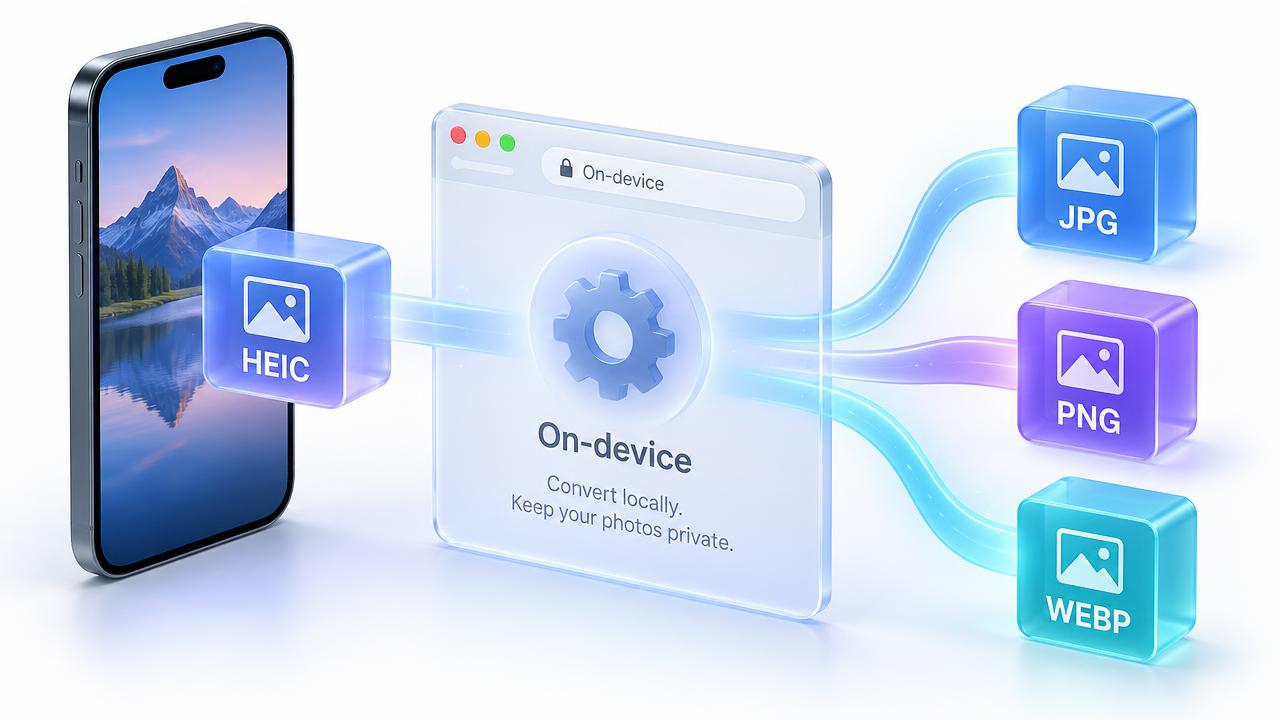
Pixnova's HEIC converter runs inside your web browser. When you drop a photo in, your own computer reads it and writes a new JPG, PNG or WebP file. Because nothing is uploaded, it's fast even on slow internet and safe for private photos like ID cards or family pictures.
Step-by-step: HEIC to JPG on Windows 10 or 11
- Open the free Pixnova HEIC to JPG converter in Chrome, Edge or Firefox.
- Drag your .heic files from File Explorer onto the page — you can add many at once.
- Pick JPG (best for sharing), PNG (lossless) or WebP (smallest for websites).
- Adjust quality if you like — 85–90% looks identical to the original for most photos.
- Click Convert, then download each image or grab them all as one ZIP file.
Other ways to open HEIC on Windows (and their downsides)
- HEIF Image Extensions (Microsoft Store): lets the Photos app open HEIC, but some PCs also need the paid HEVC codec, and it doesn't convert files for forms or email.
- Change iPhone settings: Settings → Camera → Formats → Most Compatible saves future photos as JPG, but your existing photos stay HEIC and files get larger.
- Photos app 'Automatic' transfer: Settings → Photos → Transfer to Mac or PC → Automatic converts during cable transfer, but not over AirDrop, cloud or email.
- Upload-based websites: work, but your private photos travel to someone else's server and many add daily limits or watermarks.
JPG, PNG or WebP — which should you pick?
Not sure? Choose JPG. It's the safest choice for almost every everyday task. Our full comparison of WebP vs JPG vs PNG explains the differences in more depth.
- JPG: opens everywhere. Best for emailing, printing, WhatsApp and online forms.
- PNG: lossless and larger. Pick it for screenshots or if you plan to edit heavily.
- WebP: smallest file with great quality. Ideal for websites and blogs.
Will I lose quality?
Converting from HEIC to JPG re-compresses the image, but at 85% quality or higher the difference is invisible to the human eye in normal viewing. If you need a perfect copy for editing, choose PNG instead — it keeps every pixel.
Quick troubleshooting
- Files show as .HEIF instead of .HEIC? Same format — they convert the same way.
- Converted photo looks sideways? Re-open it; most viewers read rotation data, and Pixnova applies it during conversion.
- Need a smaller file for an upload limit? Run the JPG through the Pixnova Image Compressor afterwards.
- Want one document instead of many photos? Use JPG to PDF to combine them.
The bottom line
You don't need to buy codecs or install anything to open iPhone photos on Windows. Drop your HEIC files into a free in-browser converter, choose JPG, and you're done in seconds — with no watermark and no upload.
Ready to try it? Use the free JPG to PNG converter — no signup, no watermark, 100% private. New here? Read about Pixnova, browse the FAQ, or contact Saboor.